


Exploring the Arduino Opta Pro for Home Automation
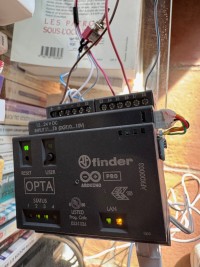
Discover how the Arduino Opta Pro can be leveraged beyond its industrial roots for smart home and DIY automation. In my article, I share hands‑on insights, practical code examples, and hardware extensions like FRAM integration to enable reliable pulse counting and persistent data storage. Whether you’re curious about Opta’s STM32 Cortex‑M4F power, its DIN‑rail form factor, or its seamless link with Arduino Cloud, this write‑up offers a clear, tested path to getting the most out of this versatile controller.
Serial.begin(115200); // Initialize serial and wait for port to open
unsigned long start = millis();
while (!Serial && (millis() - start < 2000)) {}
if (Serial) {
serialActive = true;
Serial.println("\nSerial port connected to USB");
}
Another issue was my usual NTP time routines, which no longer worked as expected. I rewrote them, and now the system maintains a date_Time variable updated every second. This value is displayed on my iPhone, ensuring I can always confirm the system is alive (the RUN LED also stays lit).
- Relay control: Each relay can be switched ON/OFF either via a local input (+12 V active) or remotely through the iPhone app. The input state and corresponding Status LED are displayed.
- USER button test: Pressing the front‑panel USER button activates relay 4.
- Analog input: Reads a 10‑bit analog value from IN5.
- Pulse counters: IN6, IN7, and IN8 each increment a separate 32‑bit counter. Pulses are filtered at 50 ms and handled via interrupts. The Status LED flashes for 100 ms on each pulse. Counter values are permanently stored in FRAM. To avoid miscounts, the interrupt for the active channel is temporarily suspended during processing.
- Cloud monitoring: The loop continuously checks the Arduino Cloud connection, and the system can even be rebooted remotely if needed. Startup and synchronization times are displayed on the dashboard.
Conclusion:
Want to build a project?
Bring your design to life with the Elektor PCB Service, powered by Eurocircuits. Upload the project files and order professionally manufactured PCBs or assembled boards through a proven European production platform.
Supporting KiCad, Eagle, Gerber, and ODB++ formats, the service is suitable for everything from prototypes and validation builds to series production and volume manufacturing.
Made in Europe. Fast. Reliable. Professional.
Mises à jour de l'auteur